Getting started
Pick the path that fits you — we'll walk you through it step by step.
The Assessment Library is for the whole family. Adults take story-based DISC assessments, kids go on personality adventures, and teachers or family members can follow along. Choose your guide below.
For Parents & Adults
Take your own assessment, then set up a safe, playful space for your child.
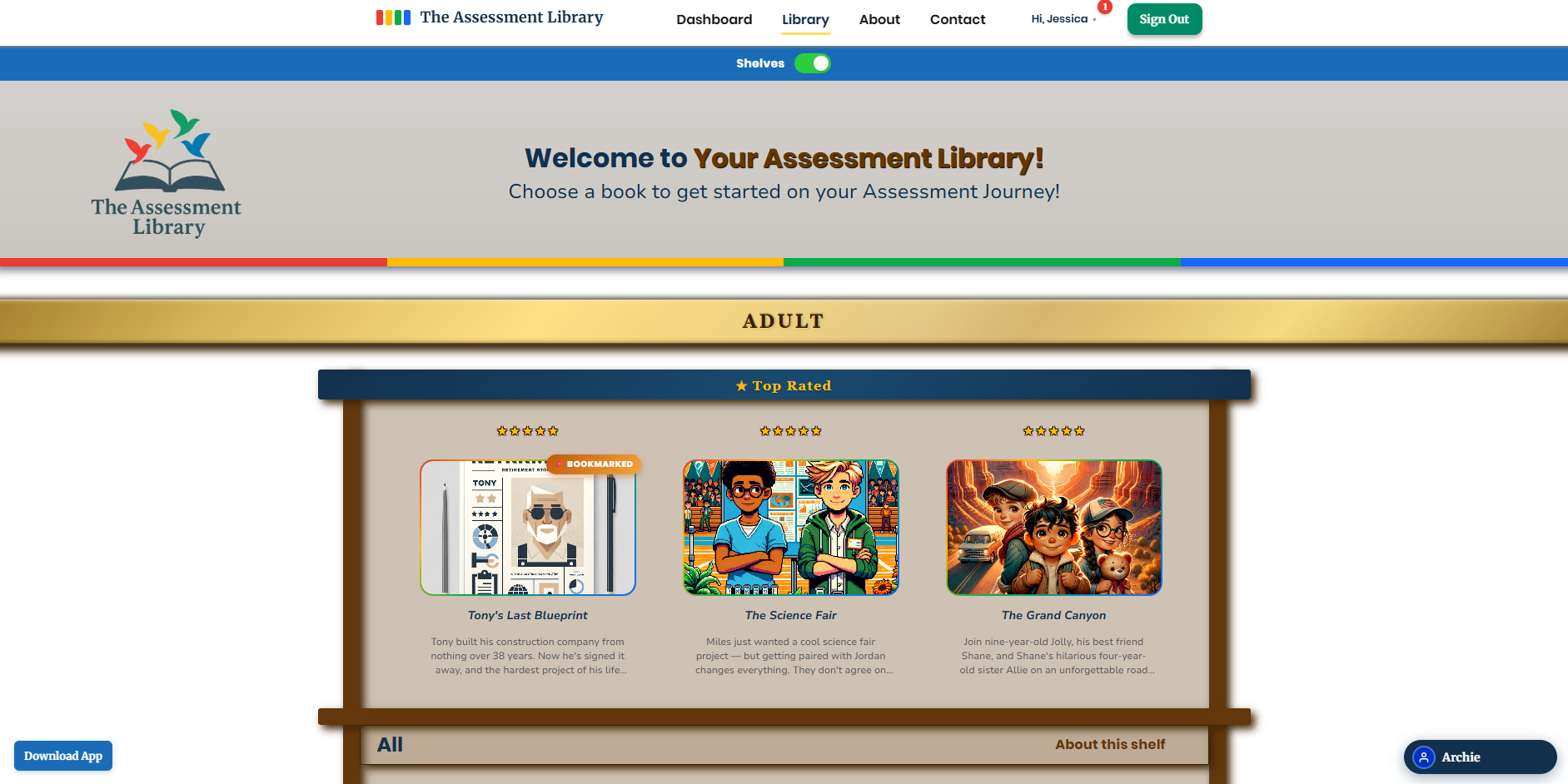
Take your first assessment — free
Your very first assessment is on us — pick any book in the Library, no credits needed. You'll read a short story, make a few choices, and we'll reveal your DISC personality profile.
Turn on Kids Mode
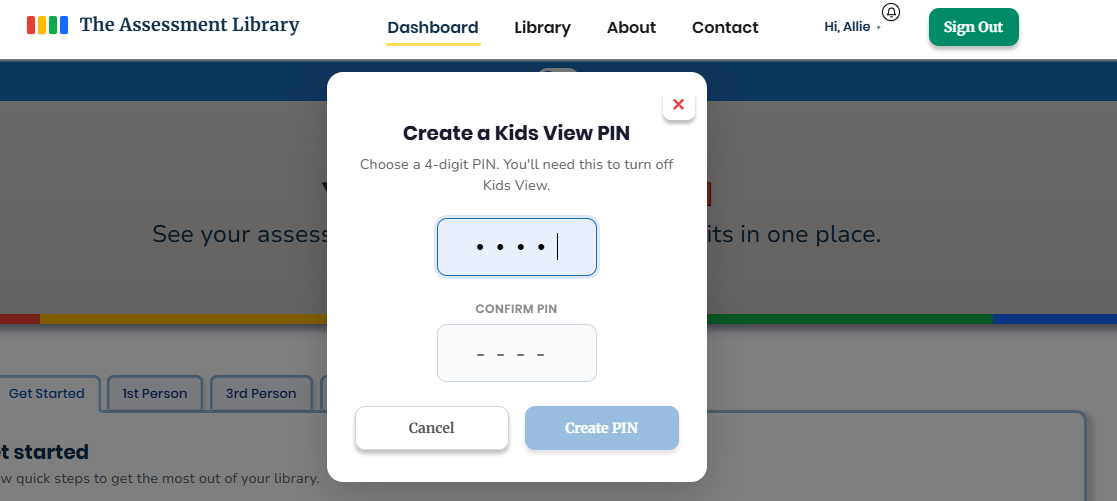
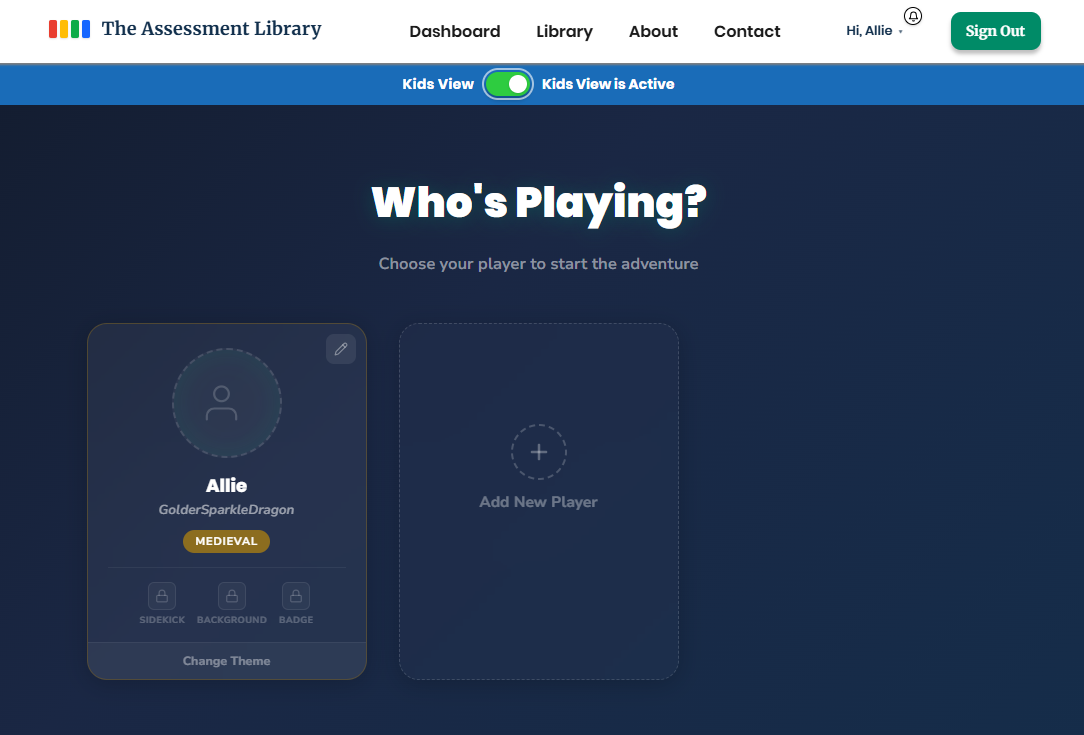
Ready to bring your child in? Flip the Kids View toggle at the top of the screen and create a 4-digit PIN. That PIN keeps the grown-up settings safely locked away.
Create your child's character
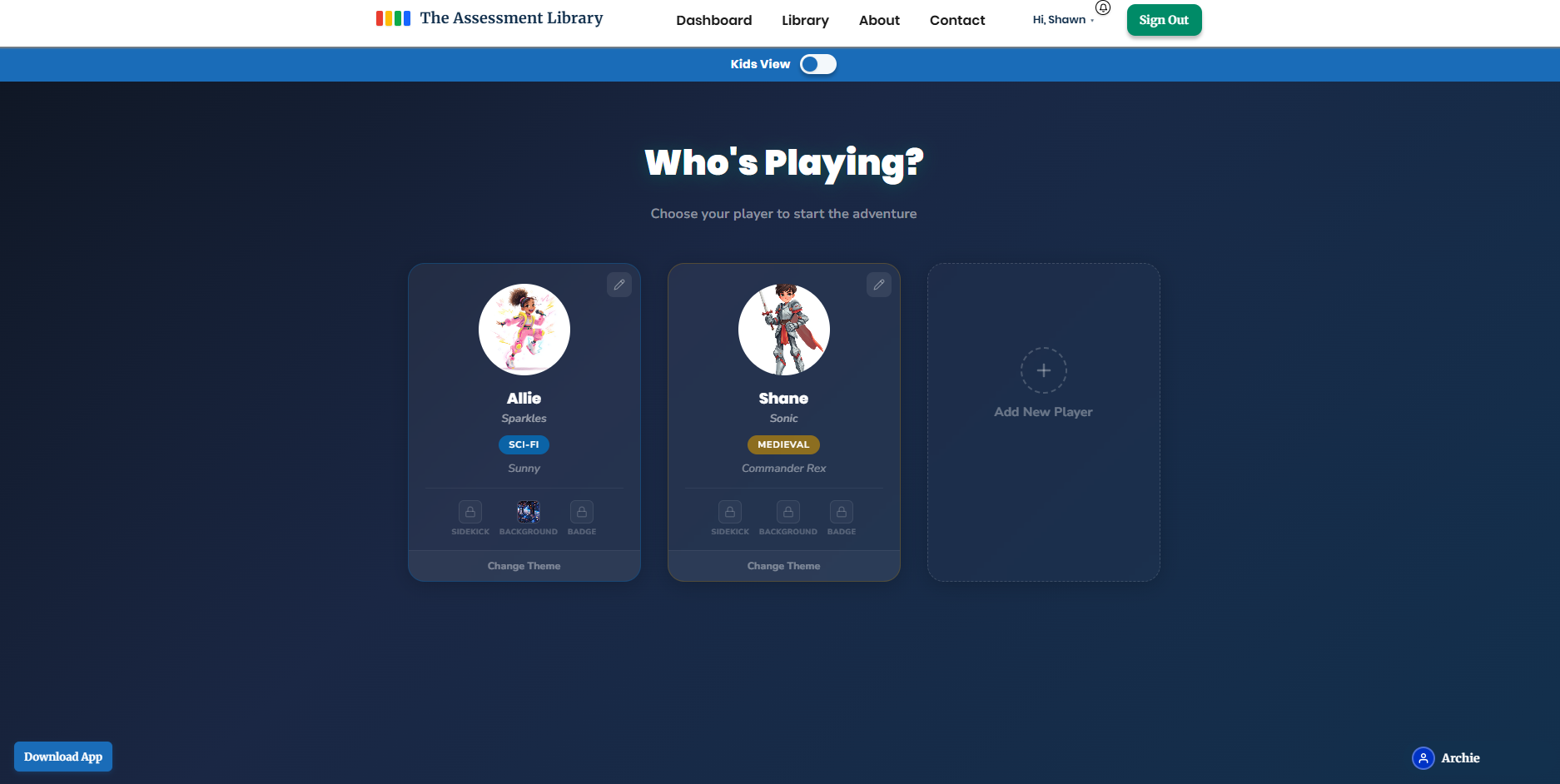
In Kids Mode, a quick wizard helps your child pick a character name, a look, and an adventure theme — medieval, sci-fi, or video game. Then they're ready for their first quest.
Connect a teacher or observer
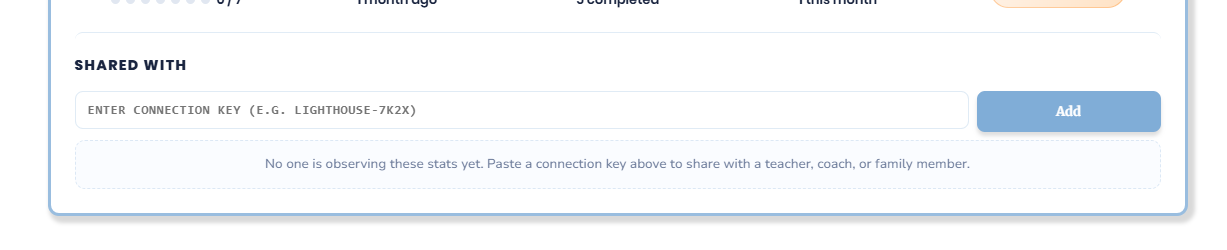
Want a teacher, coach, or grandparent to follow along? On your Dashboard under Shared with, paste their connection key. It's read-only — they see progress, never answers — and you can stop sharing anytime.
For Kids
Your very own adventure — read stories, earn tokens, and build your World.
Build your character
Choose your name, your look, and your world. This adventure is all yours.
Take a quest
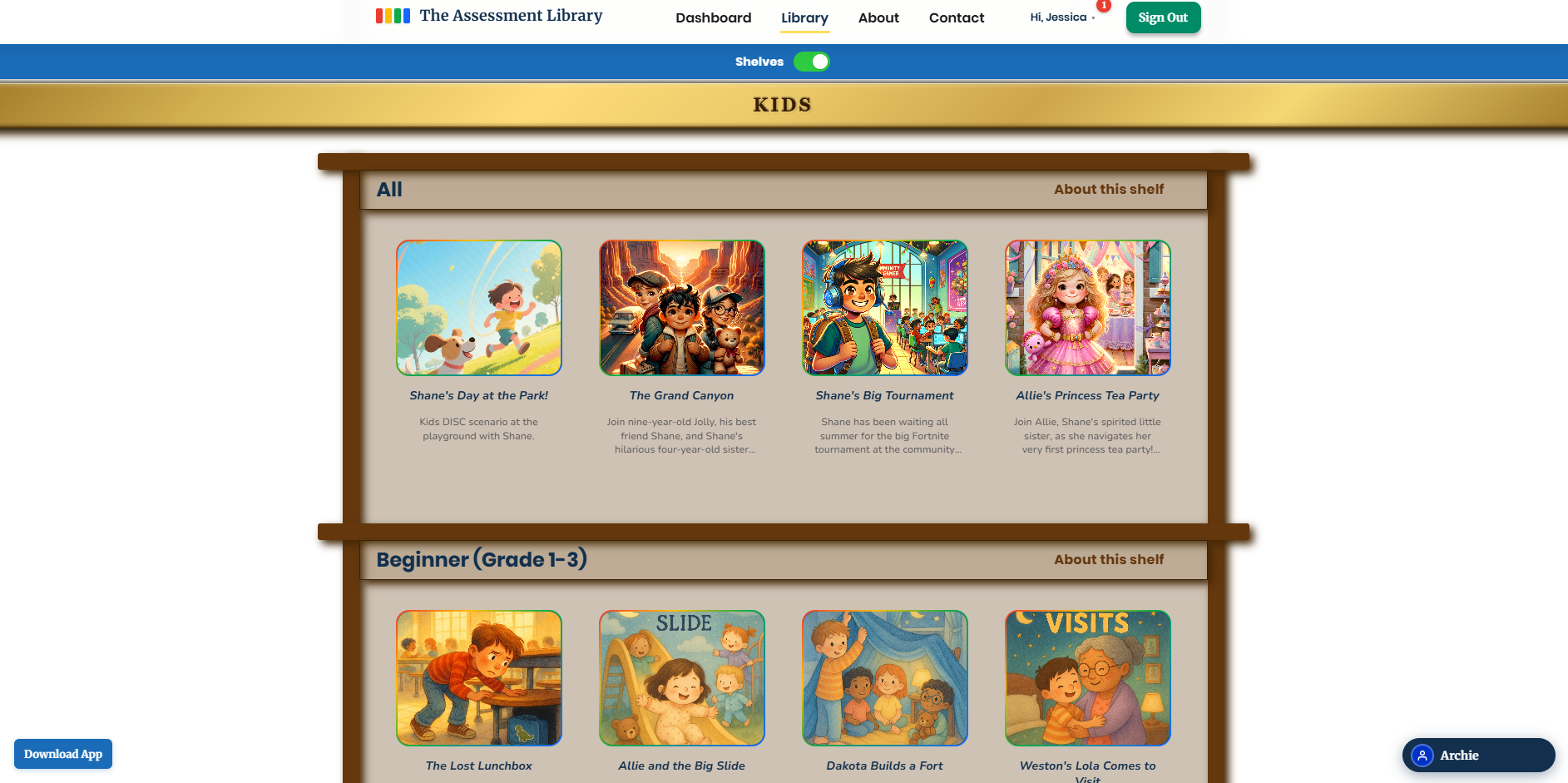
Head to the Library and start a story. Read along and make choices for the hero — there are no wrong answers!
Earn story tokens
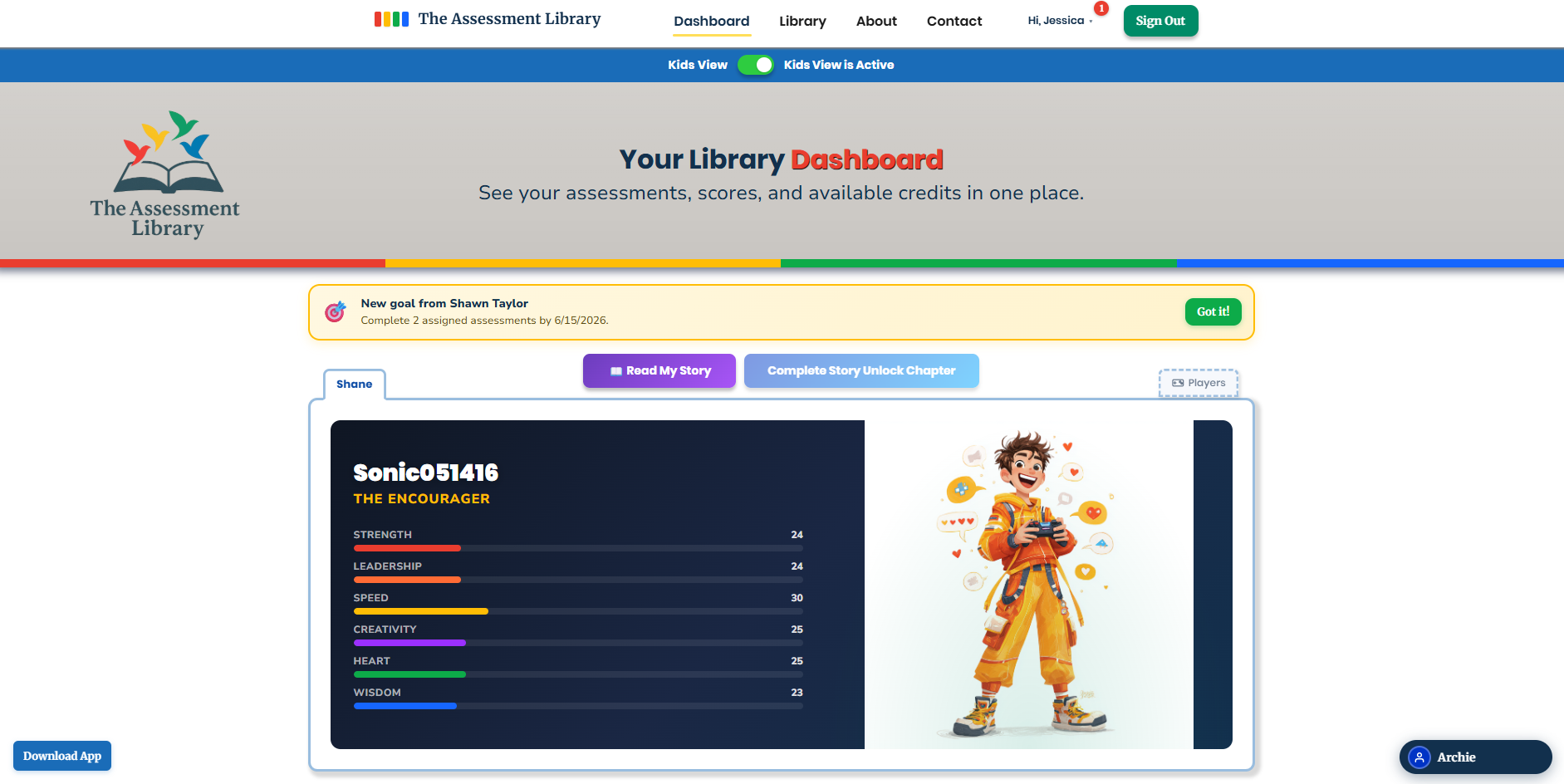
Finish quests to earn tokens, then spend them to write the next chapter of your very own story.
Unlock your World
Use your tokens to unlock cool backgrounds and collectibles for your character's World.
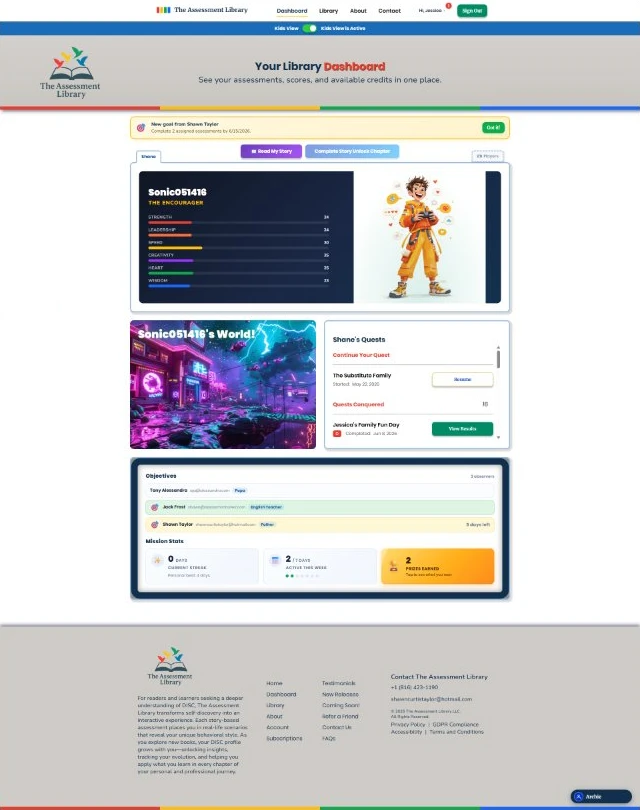
Kids never spend real money — tokens are earned in the app. A grown-up sets up Kids Mode first.
For Observers & Educators
Follow a child, a class, or a team — read-only, and granted by the family.
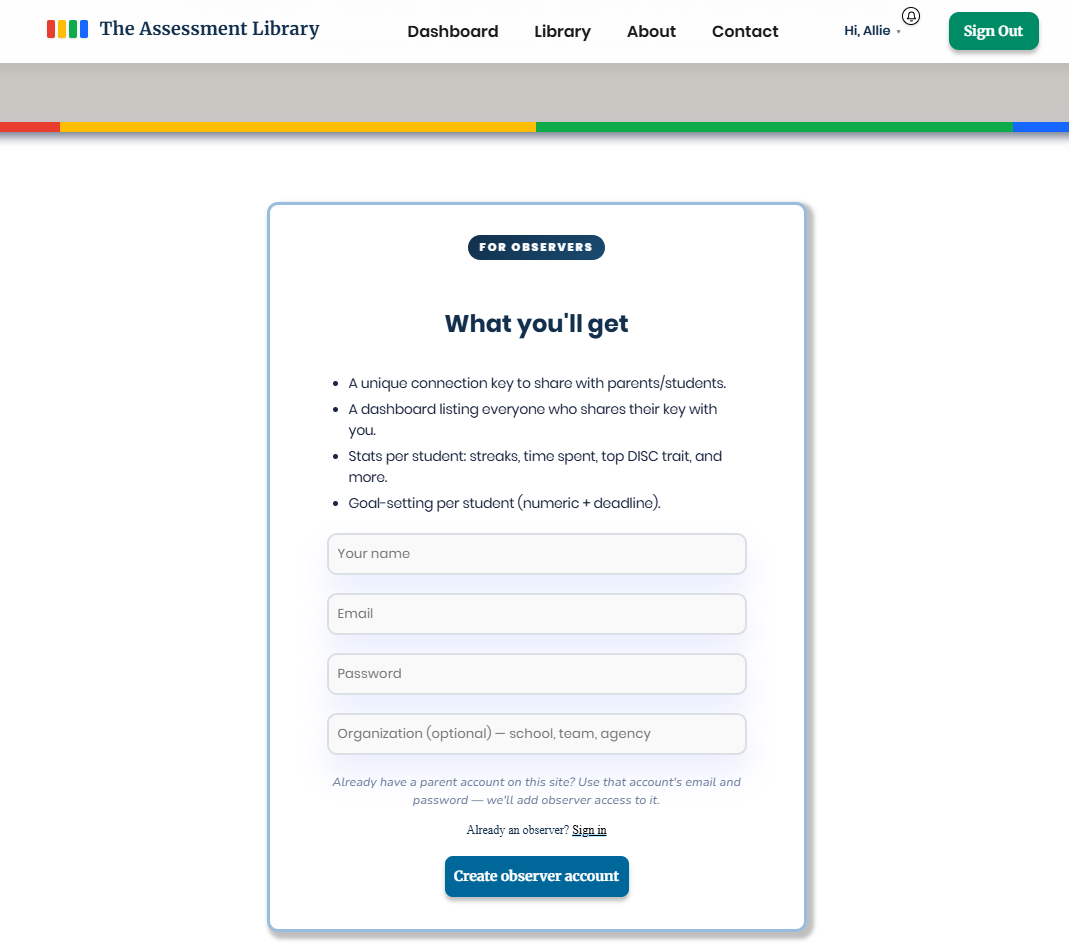
Create your observer account
It's free, and separate from taking assessments yourself — so your view stays focused on the students you follow.
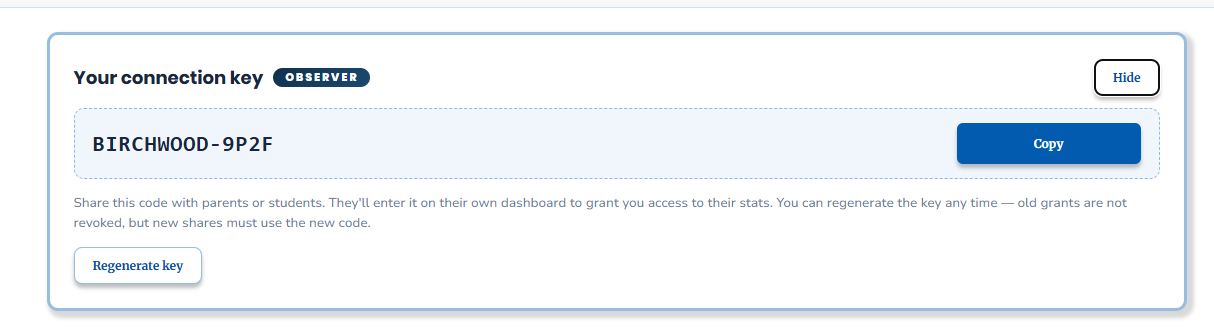
Reveal & copy your connection key
On your observer dashboard you'll get a friendly code like LIGHTHOUSE-7K2X. Reveal it, then copy it.
Share it with parents
Send your key to each child's parent. They paste it on their dashboard under Shared with, and their child's progress appears on yours.
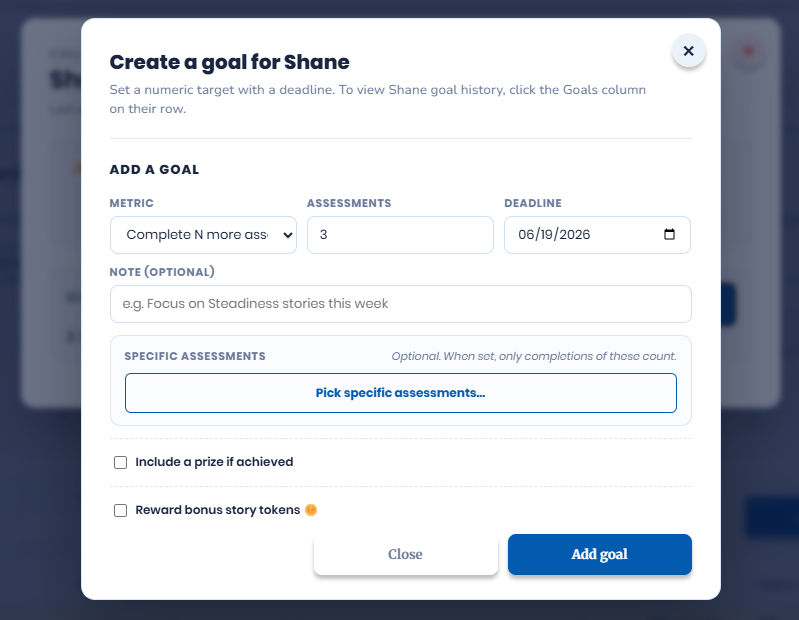
Set goals & track progress
Organize students into class tabs, set goals tied to prizes or story tokens, and get notified the moment they reach them.
Ready when you are
Your first assessment is free — there's no better place to start.